How to match photo colors to a reference
Choose a reference, adjust intensity, and inspect skin and tone. Understand the limits of color and light matching.
 Awaking
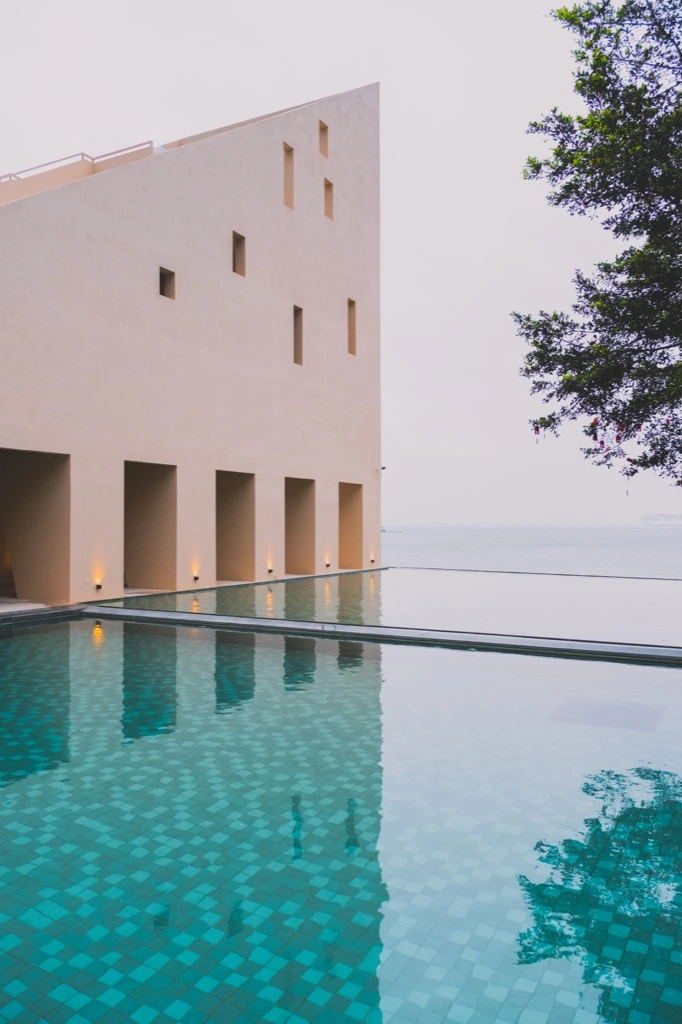


Drag or use the arrow keys to compare the original and actual export
An actual color-matching export of the same original. Results depend on the photo and reference.
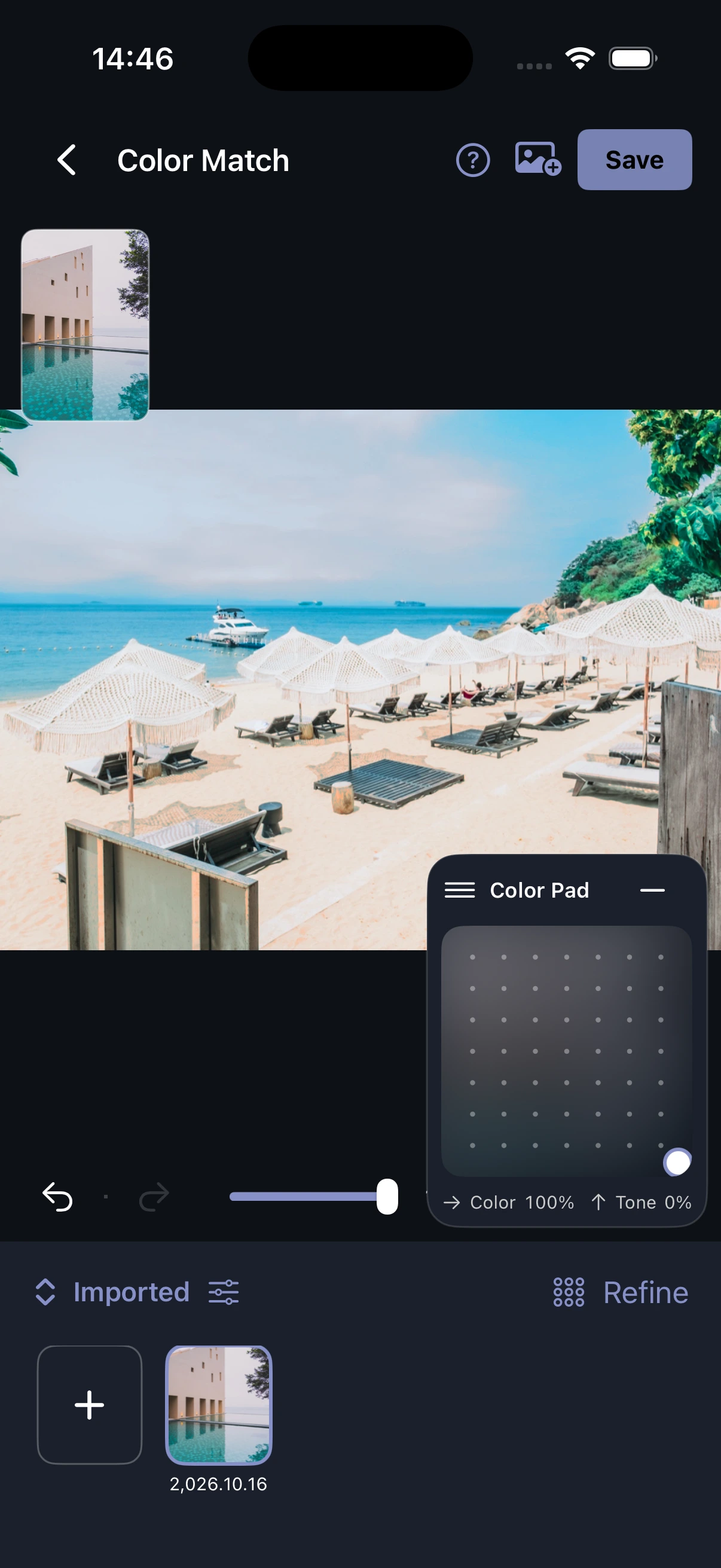
The reference gives you a direction. You decide what happens to color, tone, and detail.
Choose your photo and a reference. Explore color and tone without replacing the people or scene in your image.
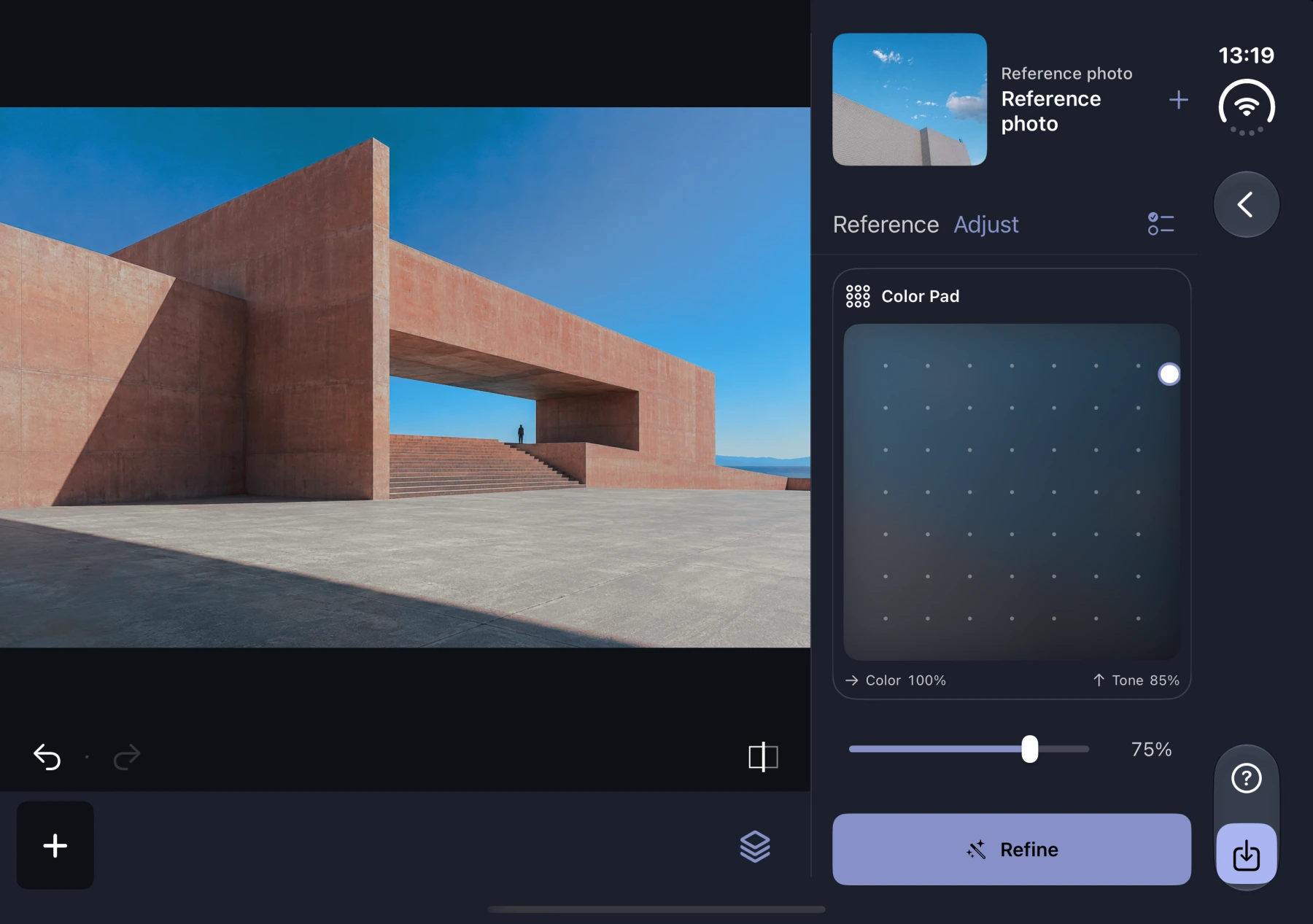
Adjust intensity, color, and tone separately. Compare with the original and keep what works for your photo.
Confirm the match, then continue with color adjustments, masks, brushes, layers, and composition in the editor.
Keep the sea in color while one area turns monochrome. Place the effect with a mask, then judge it in the whole photo.
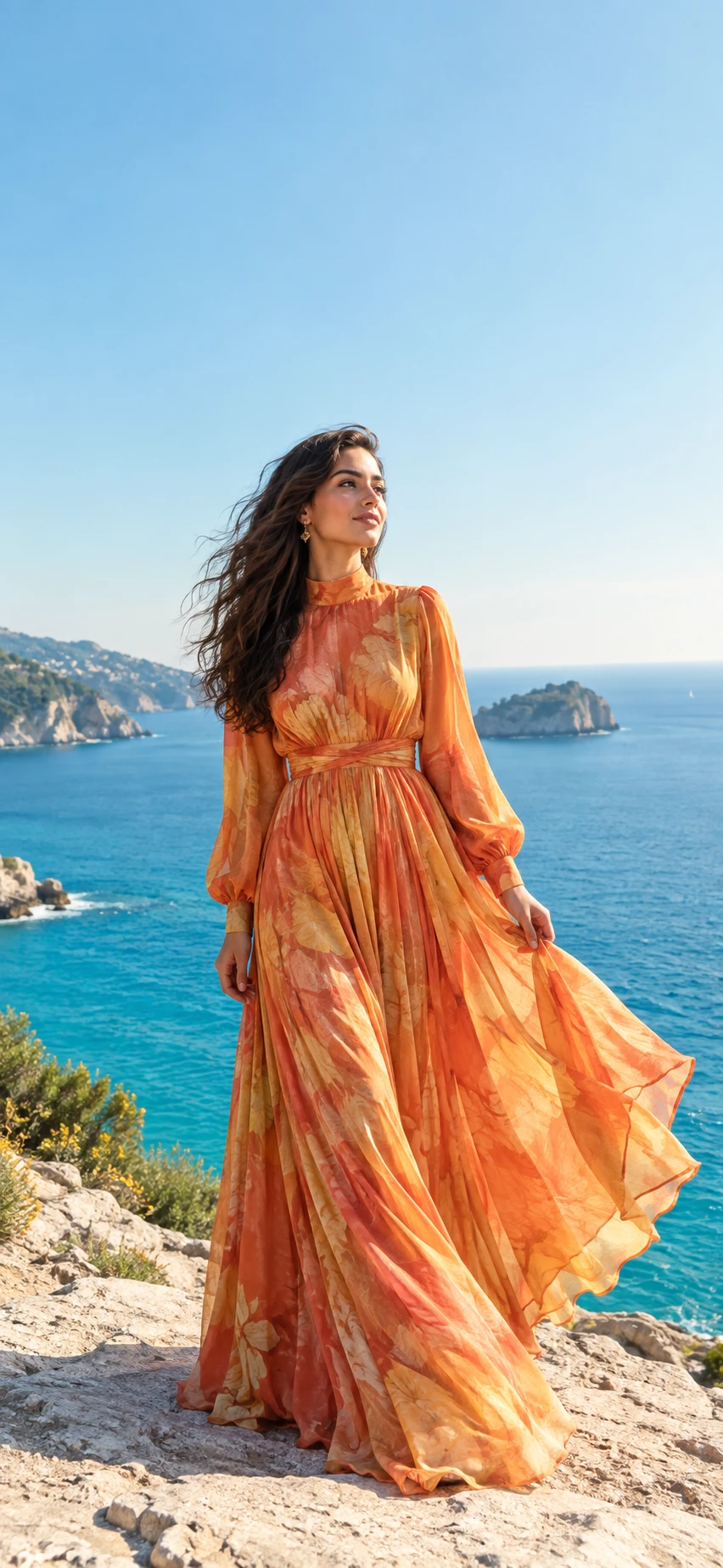
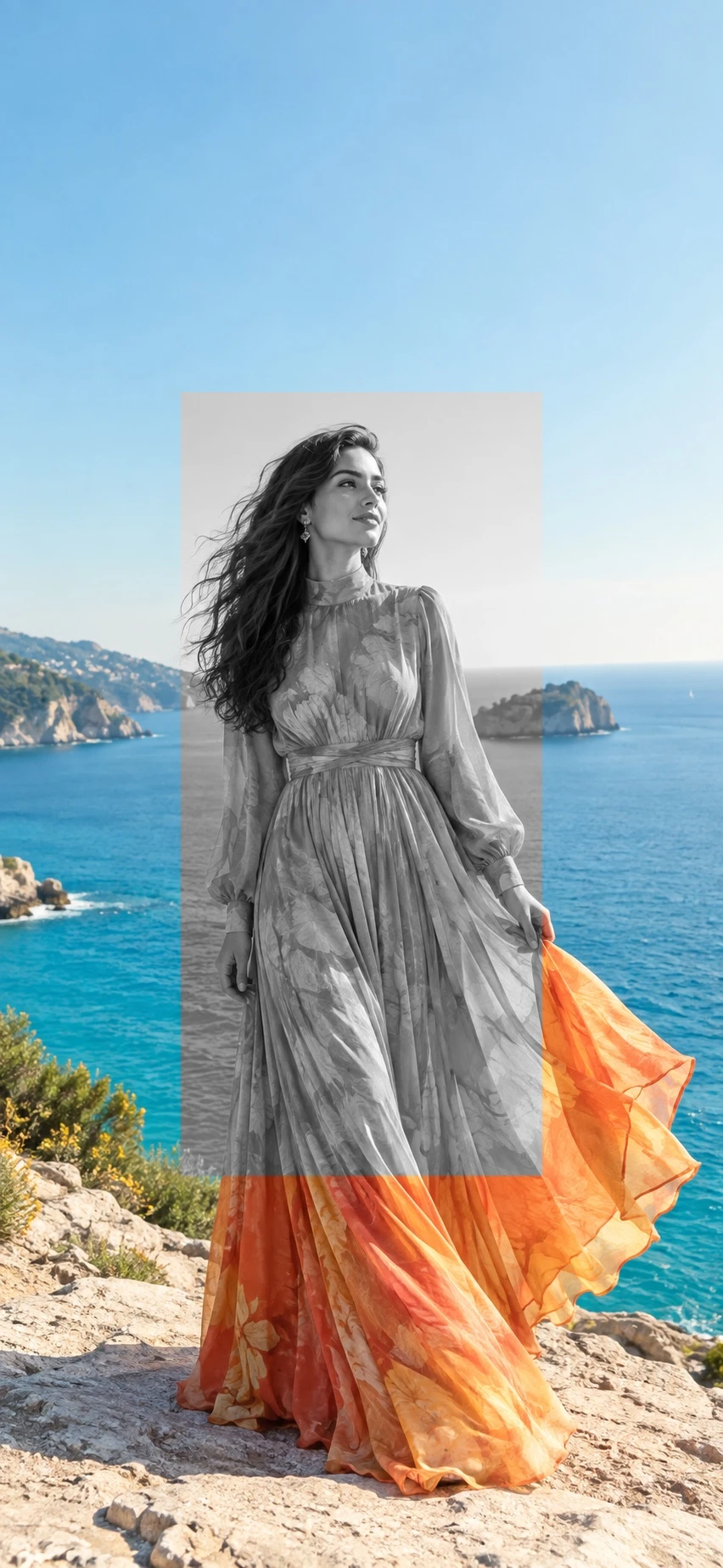
The source photo is AI-created. The local monochrome image was edited and exported as a JPEG in Awaking.
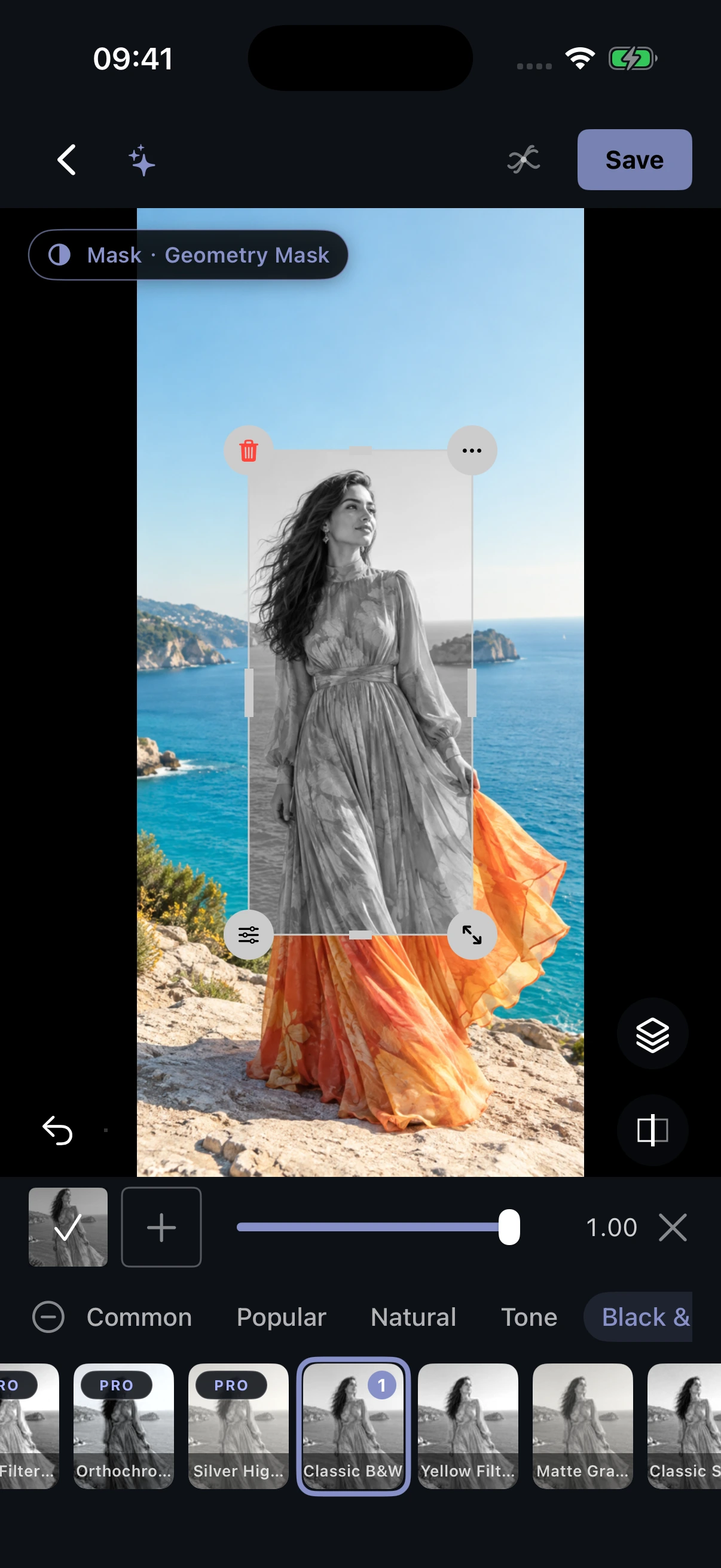
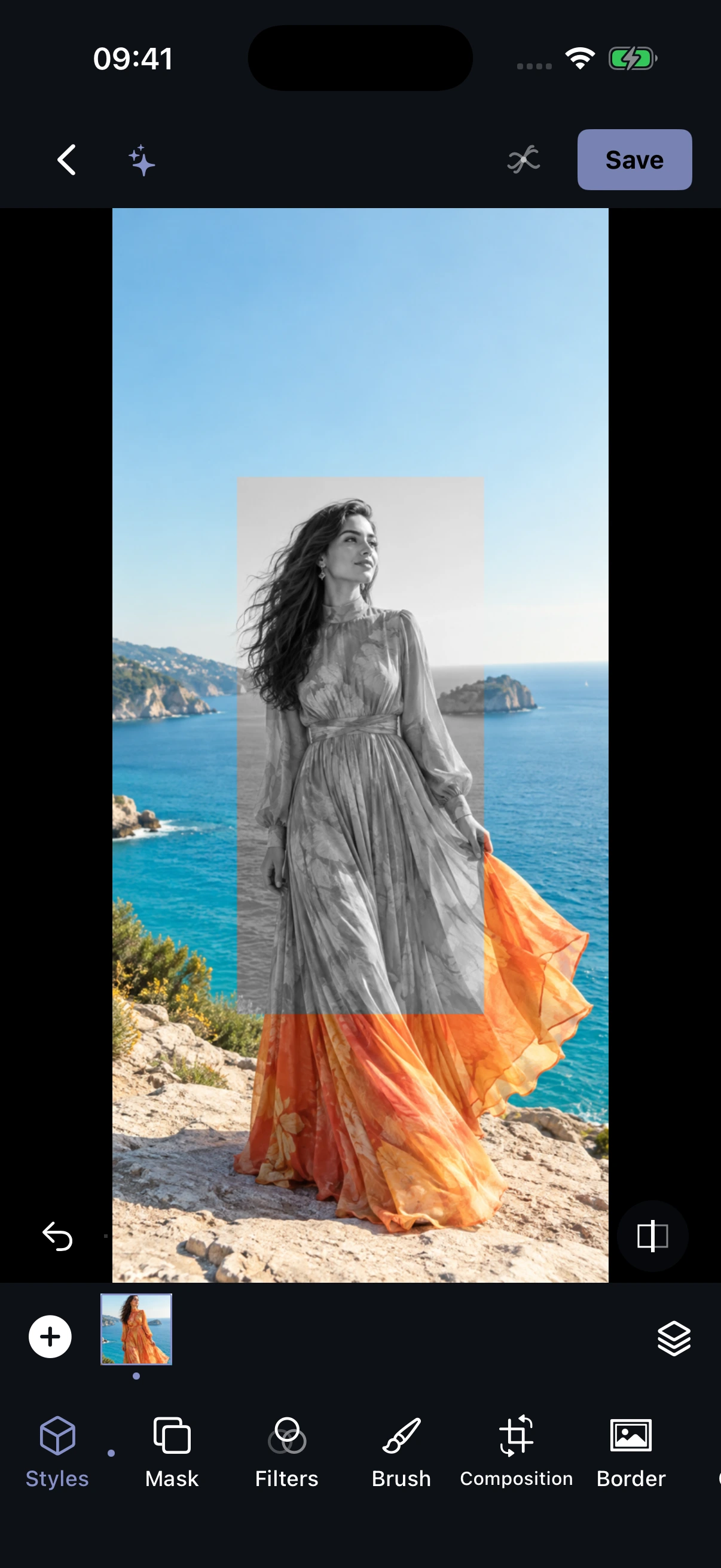
On an unfolded Duo, the photo and adjustments can sit side by side. In portrait, controls return below the image. Keep working on the same photo.
Regular iPhones and the Duo outer screen use portrait. The photo and tools keep their familiar working order.
When landscape space allows, adjustments sit beside the photo. Portrait can use an expanded bottom workspace. Layout follows the available space.
A warm everyday scene. A quiet sea. Light through leaves. Find a feeling to borrow, then judge it on your own photo.



These are existing AI-created color references, not evidence of Awaking exports.
Choose a reference, judge the result, and refine an area. Give each step a clear purpose.
Choose a reference, adjust intensity, and inspect skin and tone. Understand the limits of color and light matching.
Place an adjustment with masks and brushes, inspect its edges, and compare it with the whole image.
Awaking analyzes references, matches colors, and edits on device without an account. Apple may need a network connection to retrieve an iCloud original. When you actively share, you choose the recipient.
Color matching borrows palette and tone. Optional light matching helps with transferable light and dark relationships. It does not promise to move light sources, reconstruct shadows, or turn any day scene into night. Differences between the photos affect the result.
Awaking is free to download and lets you try basic editing. Pro covers selected advanced creative content. Benefits, available plans, and prices depend on your current version and Apple’s purchase confirmation page.
Interface examples come from existing real captures; device frames are decorative. Color matching and local monochrome use actual exports. Color inspiration is labeled separately. Examples do not guarantee a result for every photo or establish device performance.
Begin with one photo. Find the feeling you want to keep.